Well, just in case you're unaware, there is a fantastic tool available in your blog's setting called Post Template, just waiting for your use! This feature is truly a great time-saver which will do it automatically for you. Once you enable this function by pre-formatting the post editor with your special text or html code, it will render them all automatically each time you click to create a new post.
Showing posts with label post editor. Show all posts
Thursday, February 23, 2012
How to create a Post Template in Blogger blogs
Well, just in case you're unaware, there is a fantastic tool available in your blog's setting called Post Template, just waiting for your use! This feature is truly a great time-saver which will do it automatically for you. Once you enable this function by pre-formatting the post editor with your special text or html code, it will render them all automatically each time you click to create a new post.
Saturday, August 7, 2010
How to schedule a blog post in Blogger
Scheduled post publishing is setting your post's date and time to be published into the future and Blogger will automatically publish it on your blog at the specified time, and not before.
Monday, July 5, 2010
Create Pages in Blogger Blogs with ease!
This was something that I had desired for my blogspot blogs for a long time, something similar to the pages seen in Wordpress-powered websites, like my garden blog here. Pages, whose tabs are normally placed strategically below the blog's header for easy access, is a great way to highlight important or essential information about your blog. Pages such as About, Contact, Archives, Sitemap and Blog List are the norm, beside Categories, Products, Services and others...the endless choices are yours to create! Nevertheless, bear in mind that Blogger allows only 10 stand-alone pages per blog. Pages and posts are quite similar except the former are not included in the blog's archives and feeds.
Wednesday, January 13, 2010
Create Read More with Jump Break Feature in Blogger
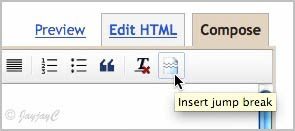
I didn't realized that inserting a jump break in my Blogspot posts is soooo very easy!Hmmm...I have eyes but don't see! It appears that this wonderful feature, the 'jump break' icon at the extreme right of the New Post Editor's toolbar had emerged since last September and I had overlooked it for so long! Gosh!
This was one of Blogger's 10th birthday celebration gift to us! Happy Belated Birthday and a million thanks to the Blogger Team and all who have worked hard and smart to share this wondrous present!
I'm so excited to have stumbled upon this two nights ago and have just applied them at my blog posts! And, I would like very much to share here on how to insert the jump breaks for those who are also panting for such a feature.
(This post is specially dedicated to a dear friend, Cheah of No-Frills Recipes, an aspiring blogger)
What is a jump break?
It is a useful tag that you can insert in a post, especially for long posts that appear in your blog's index page or homepage. With a jump break, it will create an expandable post summary, where the portion above the break shows a snippet of your post, with a "Read more" link below it, directing to the full post if the reader wants to read the rest.
Monday, January 11, 2010
Create a hypertext link in Blogspot blog

Follow these very simple steps
to create a hypertext link in Blogger :
(this link will open the webpage in the same window)
- In Compose mode of the New Post Editor, place your cursor where you want to create the link in your blog post.
- Click on the blue-coloured Link button that is displayed on the Post Editor's toolbar as pictured above. An Edit Link window will then pop up for you to insert the URL and Text to display. Before that, you'll first need to open another browser window to find the webpage that you want to link to.

Then, select and copy (Ctrl C) the web address that is found at the top white box of the browser's address bar.
Subscribe to:
Posts (Atom)
Custom Search
Email