SUBSCRIBE TO GET FREE UPDATES
RSSRSSEmailEmail
       "Keep learning ~~ keep smiling ~~ keep sharing"     
Showing posts with label css. Show all posts

Friday, September 30, 2011

Create Drop Caps to Blogger Posts easily

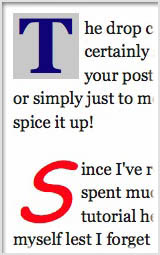
Most people must have seen examples of drop caps before, usually being presented in magazines, newspapers and novels. It is the first letter of a paragraph that is enlarged, made larger than the rest of the text therein so that it drops to several lines below, as visibly illustrated in this paragraph and the image below.

Example of Drop CapsThe drop capital letter, sometimes known as 'dropped initial' certainly stands out, right? This is one of the many ways to enliven your posts visually and make them more stylish and eye-catching or simply just to move away occasionally from the mundane display and spice it up!

Since I've recently learned how to create a simple drop cap and spent much time dabbling around it, thought it best to include a tutorial here for anyone who's interested. Also, to keep a record for myself lest I forget the nitty-gritty of it all... something that will surely happen as I age. :-)


Sunday, July 31, 2011

How to center-align Pages/Pagelist gadget in Blogger

Thanks to Vanessa Morgan who had recently visited this blog and wanted to know how to center the horizontal page tabs below the blog's header. That spurred me to google for answers after several hours of failed attempts to do it on my own.

I'm terribly happy to have learned much from GreenLava, the guru at Blogger Sentral who's most helpful and generous in sharing his knowledge and expertise. THANK YOU!

By default, the Pagelist or Pages gadget is left-aligned in Blogger blogs but can be easily aligned to the center if you so desire.

Learn how to center the Pages or PageList gadget,
that's located below the blog's header, by following these simple steps:

Thursday, April 7, 2011

Add Numbered Page Navigation for Blogger Blogs

Wow! I'm terribly excited as I've just added the numbered page navigation to my blogger blogs. Something that I had desired for a long time but didn't pursue earlier due to other priorities. Pagination is an essential feature as readers will have easier access to our blog pages and randomly or selectively delve into the archived pages.

Screen shot of numbered page navigation in my blogger blog

I've observed this pagination feature installed in many blogs but the most outstanding of all that got me smitten was seen at Rasa Malaysia, an awesome foodie site, maintained by a Penangnite residing in USA. As I googled to learn how to include this feature for my blogger-powered blogs recently and experimented with the few tutorials available, the closest that matches the one I liked was the script authored by Abu Farhan. His blogger hack will result in the lovely presentation as seen in the above screen shot, which includes both the first and last page numbers.

Sunday, January 9, 2011

Customize and style Read More link in Blogger

Thanks to a recent reader to this blog who wanted to know how to right-align 'Read More' in Blogger which prompted me to google for answers and learned much in the process.

Hence, I'm happy to share here some related tips for those seeking to learn how to customize and style the 'Read More' or Jump link in various ways as illustrated in the image below!

Read More or Jump Link samples

To do that, you'd first need to have the 'Read More' link below your post summaries in your blogspot posts. If you don't know how, follow this tutorial to create 'Read More' with Blogger's jump break feature.

Monday, October 25, 2010

Hide, Remove or Color Change the Navbar in Blogspot

Have you ever wanted to remove the default Navigation Bar (Navbar) at the top of your Blogger blogspot which features the search box and other useful links? I myself had wanted to often times, but nonetheless, the ease of signing in and out of Blogger or to access the admin pages of my blog so easily via the Navbar far exceeds my distaste of its previously default blue color.

Great that Blogger has made available for us to alter or change the colour of the Navbar to blend with our blog's theme or design which is a significant improvement aesthetically, especially with the transparency options. Once done, I was most contented and had no desire whatsoever to hide or remove the Navbar ....or so I thought until I learned something new recently!

Screenshot to show the Navigation Bar (navbar) at the top of Jacqsbloggertips' blog

Monday, September 27, 2010

Add CSS in the Template Designer to restyle your blog's appearance

My first attempt at modifying the appearance of this blog after a makeover with the Blogger's Template Designer, by editing its Template via Design | Edit HTML, was quite a handful! But armed with the extra knowledge acquired since and further experimenting with the Designer for my other blog, Peacockflower's World, I'm extremely happy to have discovered the easier alternative way to do it.

No need to go about the long and winding way of editing the blog's template (i.e. Edit HTML) which can be quite intimidating and may risk messing up the codes! Just use custom CSS (cascading style sheets) to restyle the feel and look of your blog! Once you've learned how-to, it's really quite simple, fast and fuss-free!

Follow these steps to
add custom CSS to your template, using the Template Designer :

Wednesday, September 1, 2010

Create easy HTML Scroll Box on Blogger

When I wanted to do a tutorial on how to install a related posts widget for Blogger recently, I was forced into learning how to create a scroll box to contain the exceptionally long script codes. And, mighty glad about that because I managed to learn how to make a scroll box and much more in the process, and get to document and share it here for the benefit of others as well!

Scroll box is very handy when you have a lot of data or text but limited space to display them. Besides text, the scroll box can contain images and HTML codes too! And, it's so easy to create one that can be located within your blog post or pages and even at the sidebar, footer or below a header for announcement and the like! It helps to save valuable space in your blog, giving a professional touch too!

2 examples of HTML scroll boxes
2 examples of scroll boxes

Thursday, August 12, 2010

Related Posts with Thumbnails widget for Blogger

Yet another awesome Related Posts widget by Aneesh of Blogger Plugins, a seasoned author of widgets for the huge Blogger community! This one is real cool with thumbnails for extra visibility, like that of LinkWithin. Though every one of these widgets serves the same function to bring forth related posts for your readers' further interest or absorption and probably an increase in site's traffic, I personally prefer Aneesh's to LinkWithin's feature for the various reasons:
  • the thumbnails' size is cuter, not overly large
  • you can easily customize the widget yourself to display as you fancy
  • the number of related posts can be decreased or increased beyond the default 5. Experimented successfully with 10 and more! :-)
  • traffic is not directed elsewhere when thumbnails are clicked, so download speed of blog's contents is not hampered. Different from LinkWithin that directs traffic to its own site before redirecting back to our site, and thus slows down page download.
Related Posts widget with 10 thumbnails

If you're interested, simply follow these easy steps on
how-to install the Related Posts with thumbnails widget :
(script code replicated from Aneesh's tutorial at Blogger Plugins. Thanks and God bless you, Aneesh!)

Tuesday, August 10, 2010

Related Posts widget, tailored for Blogger

Any new find that can improve the look of my blogs always excites me! Whenever I stumble upon something interesting for my wordpress-powered garden site, I'd like to find the equivalent for my Blogger-powered blogs, or vice-versa!

So, having installed the Yet Another Related Posts plugin (YARPP) recently at John&Jacq's Garden site, I then google-searched for a 'related posts widget for blogger' and was rewarded straightaway with a 2-in-1 treasure topping the list of search results. Two equally awesome widgets created by Aneesh of Blogger Widgets as follows:
  1. Related Posts Widget for Blogger
  2. Related Posts Widget for Blogger with thumbnail
Both the above widgets will display below each post, a section of links to posts that are related by way of similar labeling to the current one. It's one way of introducing your readers to other relevant contents on your site and keep them engaged. The first widget gives a list of links to related posts while the second includes the thumbnails as well. Take your pick!

I did display the first hack for about a month but a few days ago had decided to replace it with the Related Posts widget with thumbnails (check my tutorial here), the preferred appealing one for me. Regardless, I'd like to share on how-to install the first Related Posts widget (the one without thumbnails), customized to suit this blog as seen in the picture below:

Screen shot of customized Related Posts Widget

Thursday, July 8, 2010

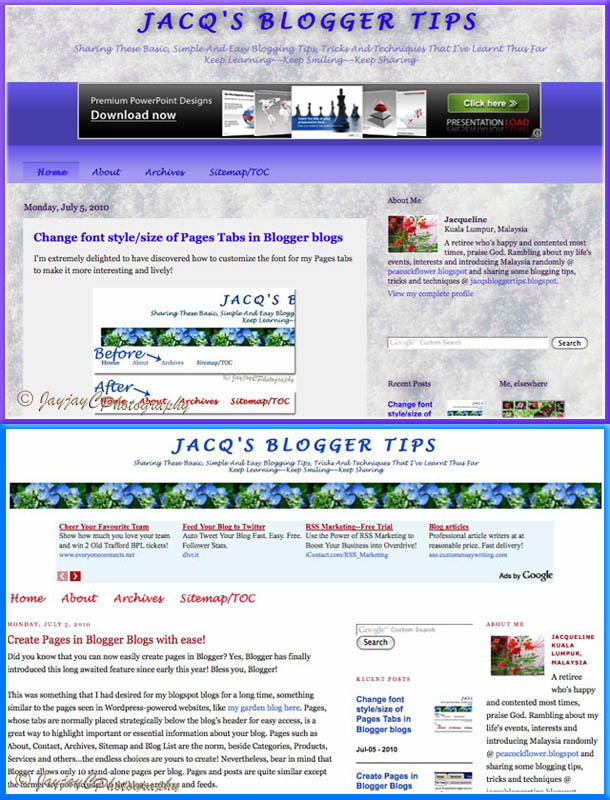
My designer blog with the new Blogger Template Designer!

Yippee...just created my very own designer blog! One full day of exciting fun playing around with the new Blogger Template Designer that was finally made available to everyone since a month ago! Just can't resist taking up Blogger's challenge to make a complete transformation from my previous 3-column Layout Template and move forward with the current trendy styles and happenings!

Screen shots of two different blog design: the top, using the Blogger Template Designer and the bottom, the Layout Template
The new template designer blog above and the old layout template below

Monday, July 5, 2010

Change font style/size of Pages Tabs in Blogger blogs

I'm extremely delighted to have discovered how to customize the font for my Pages tabs to make it more interesting and lively!

Screen shots showing the 'before and after changes' of Pages Tabs

Just learnt how to do that when I was preparing for my previous article, Create Pages in Blogger Blogs with ease, to share in this blog. That's why I've always found it so rewarding to share my knowledge, simply because in giving I receive much more! ;-)

Thanks so much to Aneesh of BloggerPlugins (comment dated March 27 2010 is referred) and W3Schools on CSS styling fonts who provided clues that aided me in getting the results that I've wanted for a long time. Yippee...I've managed to style the fonts of my header's title and description too in the process! :-)

Thursday, May 6, 2010

Use CSS text-transform property to reformat text

Have you ever wished you can change the way the default text is presented at the header, footer and elsewhere in your Blogger blogs but don't know how to? Well, it had driven me up that wall in exasperation before and sent me searching for answers!

Fret no more as I found out that it's really easy to reformat the text style and I'm sharing the way to go forward here! Not all Blogger's Template Styles have this problem though, but definitely the template 'Minima' that I'm using does. You just need to use the CSS (Cascading Style Sheet) text-transform property to control the capitalization effects of the text in HTML.

Use the text-transform property with any of the following value:
  • text-transform:uppercase; - it will convert all characters of each word in uppercase.
    An example of uppercase text is - THIS IS MY BLOG!
  • text-transform:lowercase; - it will convert all characters of each word in lowercase.
    An example of lowercase text is - this is my blog!
  • text-transform:capitalize; - it will put the first character of each word in uppercase.
    An example of capitalize text is - This Is My Blog!
  • text-transform:none; : no capitalization effects at all, text will remain as it is.
Custom Search